Podcast to YouTube Shorts with AI (2026): A Free, No-Watermark Way to Turn Episodes into Clips
YouTube Studio's own Clips and Shorts tool turns a podcast episode into Shorts for free, with no watermark. How it works on desktop and phone, where its AI suggestions are not available, what AI clippers add a watermark, and the reused-content and Shorts-pay rules that matter. Checked 28 Oct 2026.

Research-based overview: we have not tested this hands-on yet, so there is no score. Facts come from the makers' own pages, linked below.
On this page
- The short answer
- Before you start
- Step by step on desktop (the free route)
- Phone-only route
- Where YouTube’s AI suggestions are and aren’t available
- How to pick moments that work as Shorts
- Captions
- AI clippers: what the free plans do to your video
- Will clipping my own podcast get me in trouble? Two separate checks
- Making money from Shorts in 2026
- What we checked, and what still needs testing
- Mistakes to avoid
- Notes for other regions
- A weekly routine of about an hour
- FAQ
- Related
The short answer
You can turn a podcast episode into YouTube Shorts for $0 and with no watermark, using a tool that is already inside YouTube Studio. YouTube calls it Clips and Shorts. You open your published episode, pick a moment from the transcript, preview the Short with captions and publish it. We read YouTube’s help page again on 28 October 2026. We haven’t run the tool on an episode ourselves yet, so treat this as a research-based guide.
- Free and no watermark: the Studio tool. It’s YouTube’s own feature, and its help page mentions no fee, paywall or watermark. We haven’t exported a Short ourselves, so confirm that on your first one.
- Pick the moment yourself. YouTube says AI suggestions are only listed for some countries and languages, so the manual transcript route matters.
- AI clippers add convenience, and some add a watermark. Opus Clip’s free plan and Descript’s free plan both do. A table below shows each tool’s own watermark rule.
- Watch the reused-content rule. It applies to your own podcast too, and YouTube says it applies “even if you have permission”.
- Shorts pay is changing. From 1 February 2027, a channel needs at least 10 million qualified Shorts views in 90 days to share in Shorts revenue. Most small shows should treat Shorts as a way to be found, not as an income.
Research-based guide. We have not tested these tools ourselves yet. Everything comes from each company’s published pages, checked on the date shown in the sources. Menus and limits change, so check the live page before you rely on a detail.
Before you start
- Publish the full episode on YouTube first. The Clips and Shorts tool cuts from a video that’s already on your channel. If your podcast only exists as audio, see the note on RSS delivery below.
- Use a video with a clear transcript. The tool builds its Short’s captions from the transcript, so a clean recording helps. Pick the language your episode is actually in.
- Know your goal. A Short is a trailer for the full episode, not a replacement. The tool adds the source video as a related video, which is the link you want.
- Expect to spend an hour a week. That’s our estimate for choosing three to five moments, checking captions and publishing. It isn’t a measured time.
If your podcast is audio-only. YouTube lets podcasters deliver an RSS feed, and its help page says audio-only episodes are turned into videos. In practice that means a static image over the audio. That works as a full episode, but it’s a weak thing to clip from because a Short needs something to watch. A short talking-head or waveform video made from the clip is a better Short.
Step by step on desktop (the free route)
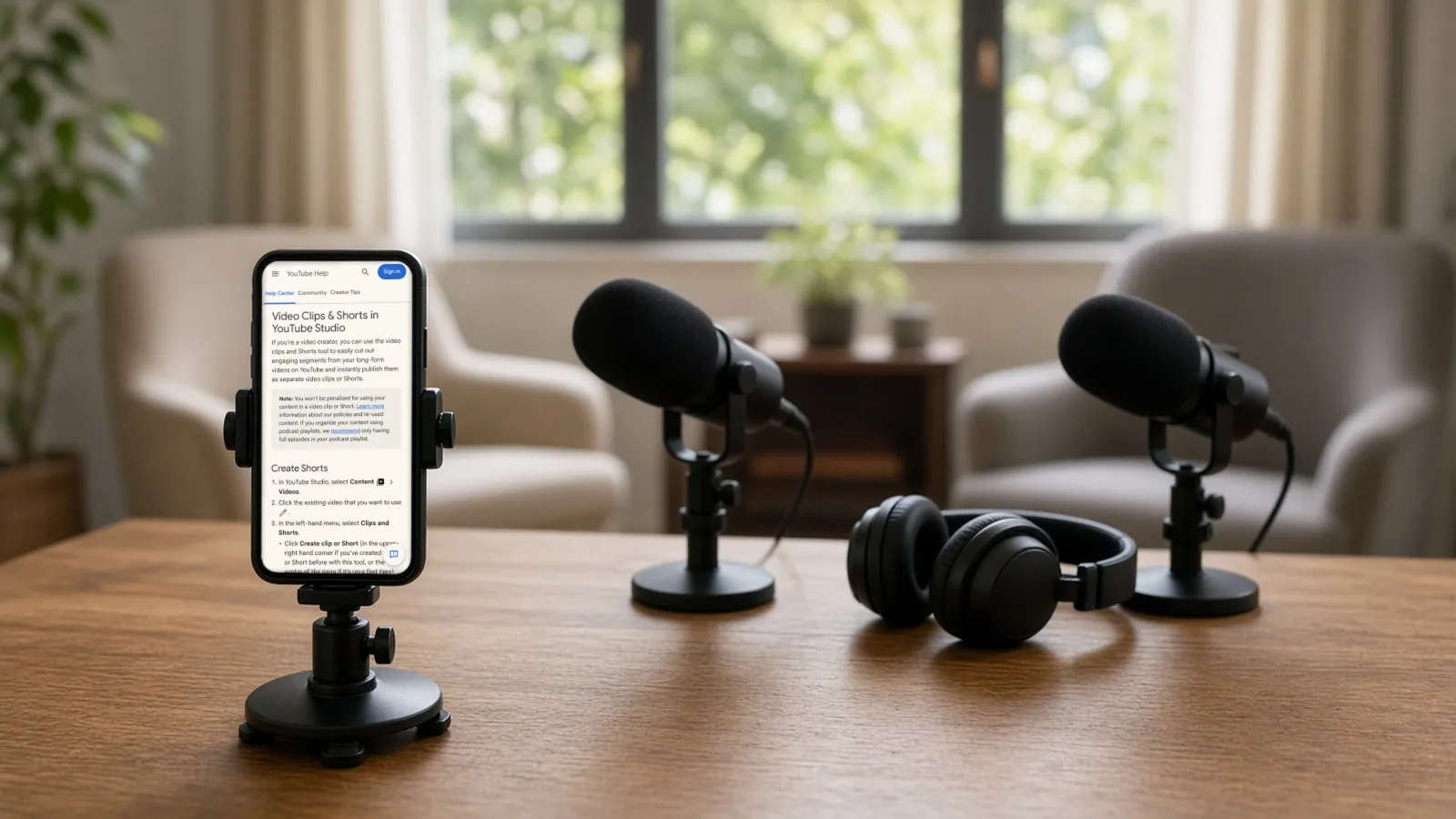
These are YouTube’s own steps, from its “Video Clips & Shorts in YouTube Studio” page.
- In YouTube Studio, go to Content, then Videos.
- Click the episode you want to use.
- In the left-hand menu, choose Clips and Shorts.
- Click Create clip or Short and choose Short. If you’ve never used the tool, the button is in the middle of the page. After that, it’s top right.
- Choose the part of the episode. YouTube gives two main ways: - Option 1, manual. Select text in the transcript and click Confirm selection, or type start and end timestamps in the timeline editor. - Option 2, if available. Use the AI suggestions in the left panel, or the AI-generated outline of your transcript.
- Adjust the start and end points if needed, using the transcript or the timeline.
- Click Preview Short. Captions are added automatically where they’re available. You can change their colour, font, style and position, or switch them off, with the Captions button at the bottom left of the preview.
- Click Create Draft, then finish the normal upload dialog and publish.
Two details from the page are worth knowing. The preview can look lower resolution than the final video, and it can show black bars that the final version replaces with a blurred crop. And the source episode is added as a related video automatically, unless the Short is private, unlisted or Made for Kids.
YouTube’s page also says: “You won’t be penalized for using your content in a video clip or Short.” That’s about your own clips from your own video. It isn’t a pass for anything else, as the reused-content section below explains. If you keep podcast playlists, YouTube recommends having only full episodes in the playlist, so don’t add your Shorts to it.
Phone-only route
If you work from a phone, YouTube has a separate path called “Edit into a Short” in the YouTube app. YouTube’s page for it says it works on a public video, and the Short can be up to 60 seconds. It also says you can’t add music from the Audio Library when you make a Short this way. It’s a decent option if you don’t have a laptop, but you choose the moment by scrubbing the video instead of selecting transcript text. We haven’t tried it.
For the desktop and phone routes, YouTube says Shorts can now be up to three minutes long and square or vertical. A Short over one minute that has an active copyright claim is blocked worldwide, so avoid long stretches of licensed music or someone else’s clip inside a Short.
Where YouTube’s AI suggestions are and aren’t available
YouTube’s page says the AI-powered suggestions and outlines are available “in select countries” and “in select languages”:
| Listed by YouTube | |
|---|---|
| Countries | A limited set of countries (see YouTube’s help page) |
| Languages | English, French, German, Hindi, Korean, Portuguese, Spanish |
If your country or language isn’t listed, you won’t see suggestions, but the manual transcript route in Option 1 doesn’t depend on them. We haven’t tried the tool from every region, so whether the manual route and auto-captions work well for your language is unconfirmed. Test with one episode before you plan a workflow around it.
How to pick moments that work as Shorts
This part is our own advice, not a study. We don’t have view numbers behind it.
- Start where the point starts. Cut out the “so, welcome back” and the warm-up. A clip should open on a claim, a question or a story.
- One idea per Short. If you need to say “as I mentioned earlier”, the clip is missing context. Pick a different moment.
- Look for a change of mood. A laugh, a disagreement, a surprising number the guest gives. Those are easy to feel in the transcript.
- Finish on the payoff. End after the punchline or the answer, not after the next topic begins.
- Write a plain title. Say what the viewer will learn or hear. Don’t make a promise the clip doesn’t keep.
- Keep the face and the voice. Add something of your own, such as a text line or a quick intro, so the Short reads as yours (more on why below).
Captions
Captions are the part of this job where AI helps most, because most people watch Shorts without sound. Three facts from the sources:
- In the Studio tool, YouTube adds auto-captions to the Short where it can, built from the transcript, and you can restyle them or switch them off.
- YouTube’s automatic-captioning help page lists the languages it supports. Check your language there before relying on it.
- Klap’s FAQ lists 52 supported languages. We haven’t tested its accuracy. CapCut also generates captions, but we couldn’t confirm its accuracy or language list.
Read every caption before you publish. Names, brands and numbers are where automatic captions go wrong. You don’t need to label captions as AI-made. YouTube’s disclosure page lists “Caption creation” as a minor edit that creators don’t have to disclose. That’s separate from realistic synthetic video or audio, which does need a label.
AI clippers: what the free plans do to your video
An AI clipper finds moments, reframes the video to vertical, adds captions and exports a file you upload yourself. They save time when you have a lot of episodes. This table covers only the question this guide is about: will the free version put a mark on my video? For prices, plan limits and which tool to choose, use our Opus Clip alternatives comparison, which has the numbers.
| Tool | Free option (from its own pages) | Watermark rule |
|---|---|---|
| YouTube Studio Clips and Shorts | Free, built into Studio | No third-party watermark |
| Klap | “Create 1 video free” | Says “No watermarks, ever”, including on free |
| Opus Clip | Free plan with 60 credits a month | Says free clips have a watermark; clips can’t be exported after 3 days |
| Descript | Free plan | Watermark in the bottom-right corner; 720p export |
| CapCut | Free to use | Says exports are watermark-free “in most cases”; a watermark can appear with an ending clip or Pro assets; the free export limit varies by region |
We don’t quote Klap’s paid price here because its homepage and pricing page showed different figures on the day we checked, and we don’t quote a CapCut price at all. CapCut’s availability depends on your country and is unconfirmed here.
Will clipping my own podcast get me in trouble? Two separate checks
YouTube applies two different checks, and a Short can pass one and fail the other.
1. Copyright. This is about music, film clips and other people’s recordings. If your episode has licensed music, a Content ID claim can follow the Short.
2. Reused content. This is a channel-level monetization rule. YouTube says reused content is content “already on YouTube or another online source” repurposed “without adding significant original commentary, substantive modifications, or educational or entertainment value”. It adds: “This policy applies even if you have permission from the original creator.” And: “Reused content is separate from YouTube’s Copyright enforcement, which means it’s not based on copyright, permission, or fair use.”
YouTube’s Studio page says your own clips won’t be penalised. The practical reading for a podcaster is to clip your own show, add something (a title, a caption, a short intro) and avoid turning a feed into a pile of near-identical cuts. YouTube’s list of what isn’t allowed to monetize includes “Clips of moments from your favorite show edited together with little or no narrative” and “Short videos you compiled from other social media websites”. Its Shorts rules also say that views of non-original Shorts, reuploads and compilations don’t count towards Shorts revenue.
Making money from Shorts in 2026
What you need to join the Partner Program
YouTube’s Partner Program page lists two routes: 1,000 subscribers with 4,000 qualified public watch hours in the last 12 months, or 1,000 subscribers with 10 million qualified Shorts views in the last 90 days. Watch hours from the Shorts Feed don’t count towards the 4,000. Partner Program availability differs by country, so check Studio’s Earn area for your channel.
What changes on 1 February 2027
YouTube’s pages say existing partners should review and accept the updated terms in Studio by 31 January 2027. From 1 February 2027, to earn a share of Shorts ad revenue from the Creator Pool and YouTube Premium for a month, a channel needs at least 10 million qualified Shorts views in the last 90 days. The page also says creators keep 45% of their allocated revenue. Shorts views from before you accept the Shorts monetization terms aren’t eligible.
For most small podcasts, that threshold is far away. Use Shorts to bring people to the full episode, where watch hours and long-form ads count. We make no claim about how much a Short helps a long video, because we have no data on that.
Mass-produced AI templates
YouTube’s channel policy lists “AI-generated content made with generic or unoriginal templates giving the impression of mass production without adding the creator’s original, authentic insights or perspective” among what’s not allowed to monetize. Cutting your own conversations is original. Feeding a tool dozens of copies of the same layout with generic text on top isn’t.
What we checked, and what still needs testing
We checked: YouTube’s Clips and Shorts help page (steps, countries, languages, related-video rule), its Shorts length, upload and monetization pages, the Partner Program page, the channel monetization policy, the AI disclosure page, and the pricing or help pages of Opus Clip, Klap, Descript and CapCut.
We have not done:
- Run the Studio tool on a real podcast episode, on desktop or phone.
- Used the tool from accounts in other regions or with non-English episodes, so we can’t say how it behaves there.
- Measured how long clipping takes, or how good auto-captions are in any language.
- Exported from Klap, Opus Clip, Descript or CapCut to see the watermark ourselves. The watermark rules above are what each company says.
- Confirmed the longest Short the Studio tool can make, or whether it can clip from an unlisted episode.
Those are the tests we’d run next. We’d then update this page with screenshots.
Mistakes to avoid
- Publishing 20 clips from one episode in one day. Pick the best three to five. Quality is the easier route past the reused-content rule.
- Trusting auto-captions. Read them for names and numbers.
- Clipping an episode with music you don’t own. A Short over a minute with an active copyright claim is blocked worldwide.
- Cutting other people’s podcasts. Even with permission, YouTube’s reused-content rule can still apply to a channel that’s mostly someone else’s material.
- Adding Shorts to your podcast playlist. YouTube recommends only full episodes there.
- Paying for an AI clipper before you’ve tried the free Studio route.
Notes for other regions
- If your country isn’t on the AI-suggestion list. The manual route works the same way, but check your channel’s features and your language’s caption support. Check your own Studio’s Earn tab for Partner Program availability. Prices for AI clippers are in USD on their pages. Local taxes may apply.
- Everywhere. YouTube’s monetization and reused-content rules are global help-centre policies. Some tools and features can also be restricted by local law, so check the live page for your country.
A weekly routine of about an hour
This is our suggested routine, with timings that are our estimate, not a test result.
- Monday, 10 minutes. Publish the full episode. Wait for the transcript to appear in Studio.
- Monday, 25 minutes. Open Clips and Shorts. Pick three moments using the manual route or, if you have it, the suggestions. Fix the start and end points.
- Monday, 10 minutes. Preview each Short. Fix the captions, write a plain title and create the draft.
- Tuesday to Thursday, 5 minutes each. Publish one Short a day.
- Friday, 10 minutes. Look at which Shorts people watched to the end. Use that to choose next week’s moments.
If you’d rather not do the posting side by hand, have your clips suggested, captioned and posted to 15+ places with AIFix Creator Autopilot. That’s our own service. It’s a paid, done-for-you option, and the free Studio route above works without it.
FAQ
Is there a free way to make Shorts from a podcast with no watermark?
Yes: YouTube Studio’s Clips and Shorts tool is built into Studio and is free. Third-party tools differ. Opus Clip’s free plan and Descript’s free plan add a watermark, according to their own pages. Klap says it adds no watermark.
How long can a Short be?
YouTube’s Shorts pages say Shorts can be up to three minutes. The page for the Studio tool doesn’t state its own limit, so check the tool, because the maximum length it can make is unconfirmed. The phone “Edit into a Short” route is limited to 60 seconds.
Why don’t I see AI suggestions in my Clips and Shorts tool?
YouTube lists suggestions only for a limited set of countries and seven languages (English, French, German, Hindi, Korean, Portuguese and Spanish). Outside that, use the manual transcript option.
Can I clip someone else’s podcast, such as a famous show?
It’s risky. Even with permission from the owner, YouTube’s reused-content rule can apply, and it’s separate from copyright. It can stop a channel from earning if the channel is mostly other people’s material with little added. Clip your own show, or ask a lawyer about anything more.
Do I have to label AI captions as AI-made?
No. YouTube’s disclosure page lists “Caption creation” among the edits creators don’t need to disclose. Realistic synthetic video or audio is different.
Will Shorts affect my long episode?
We can’t say. YouTube’s help pages don’t promise any effect on your full video, and we have no data of our own. The tool does add the full episode as a related video on the Short.
Related
Sources
- Video Clips & Shorts in YouTube Studio, YouTube Help (checked 28 Oct 2026)
- Upload YouTube Shorts, YouTube Help (checked 27 Oct 2026)
- Understand three-minute YouTube Shorts, YouTube Help (checked 27 Oct 2026)
- Create YouTube Shorts from your videos, YouTube Help (checked 27 Oct 2026)
- YouTube Partner Program overview and eligibility, YouTube Help (checked 28 Oct 2026)
- YouTube Shorts monetization policies, YouTube Help (checked 28 Oct 2026)
- YouTube channel monetization policies (inauthentic and reused content), YouTube Help (checked 28 Oct 2026)
- Disclosing use of altered or synthetic content, YouTube Help (checked 28 Oct 2026)
- Use automatic captioning, YouTube Help (checked 27 Oct 2026)
- Deliver podcasts using an RSS feed, YouTube Help (checked 27 Oct 2026)
- Opus Clip pricing, Opus Clip (checked 28 Oct 2026)
- Klap AI clip maker and FAQ, Klap (checked 28 Oct 2026)
- Export a video or GIF locally (watermark, 720p), Descript Help (checked 27 Oct 2026)
- How to export video without watermark, CapCut Help (checked 27 Oct 2026)
- Why am I prompted to join CapCut Pro when exporting, CapCut Help (checked 27 Oct 2026)
- AIFix Creator Autopilot, AIFix (checked 27 Oct 2026)
This post was drafted with help from an AI assistant, then checked, edited and approved by Numan Malik.
Numan Malik, Founder, AIFix. Reviewed and approved by Numan before publishing. More about Numan · Editorial policy